The recent Windows updates blocks old versions of My Screen Recorder.
Please contact support for an upgrade to the latest version.
The recent Windows updates blocks old versions of My Screen Recorder.
Please contact support for an upgrade to the latest version.
Yes, Security Monitor Pro will allow you to record from cameras at multiple remote locations. You will only need a broadband connection at each barber shop and a IP camera.
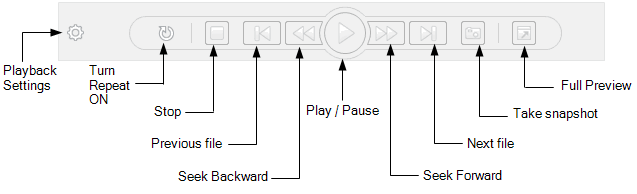
The recordings can be played back at a faster speed. Use the DVD style buttons in the media player to seek forward:
You can have Security Monitor Pro on your PC and view the live broadcast on your Mac book.
There are 3 options - Install the Windows Media Player for Mac, use VLC player for Mac, or use Flip4Mac with Quicktime. From within any of those media players you can connect to a network stream and use the URL given in the Security Monitor Pro log window when you turn on broadcasting.
Yes, WebCam Monitor can broadcast your USB webcams live over the internet.
Turn on broadcasting in WebCam Monitor and you will be able to view your cameras from a PC, Android, or iOS device remotely.
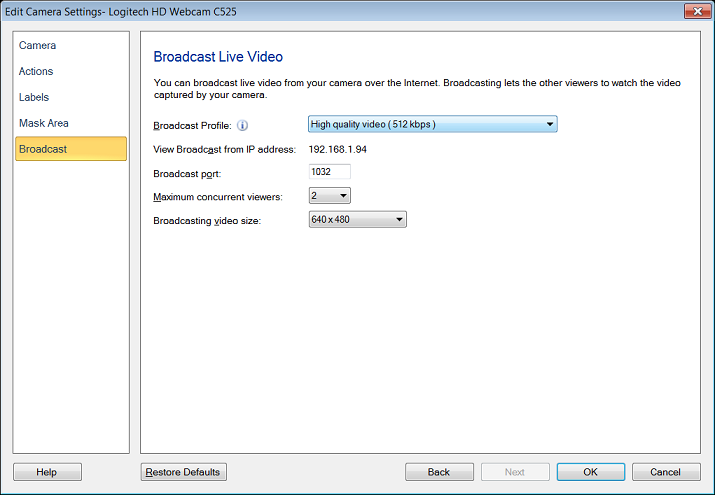
More information on viewing cameras remotely is available in this article:
https://www.deskshare.com/resources/articles/wcm_viewcameraremotely.aspx
We have an article that explains how to configure broadcasting here:
https://www.deskshare.com/resources/articles/wcm_Internet_Streaming.aspx
My Screen Recorder Pro has a flexible scheduler that will start a program or record from the internet.
In your case, instead of selecting a program, choose 'Default Web Browser' and enter the URL. It will be accepted. Most websites allow you to enter the username and password in the url - https://username:password@***.com/room1
You can use the scheduling function in My Screen Recorder Pro to record your radio show. We have an article that explains how.
You may find this article helpful:
https://www.deskshare.com/resources/articles/msrpro_Record_Internet_Radio.aspx
Security Monitor Pro will connect to your 4 remote IP cameras.
You can use 1 dynamic DNS on the internet. Each camera will need it's own port number and you will need to map the port from your remote router to each camera.
Security Monitor Pro allows you to rotate video if your camera is mounted sideways or upside down.
Please see the link on this page for an illustration:
https://www.deskshare.com/help/smp/adding-ip-camera.aspx
You can use masking to block portions of the monitored area. This will help eliminate false alarms from a tree or other object.
Masking is available in WebCam Monitor. Right click on the preview area, and select edit camera. Click on the masking selection on the left. Here is an illustration:
https://www.deskshare.com/help/wcm/OnMotionDetection.aspx
Yes, Security Monitor Pro will view your cameras from two different DVR's.
Make sure your DVR is on the supported list:
https://www.deskshare.com/ip-cameras-manufacturers-models.aspx
Add both DVRs and select the camera number. You can mix and match cameras between multiple DVRs.
If your DVR is not listed, we can create a profile for it if you can make it accessible online. Please fill out this camera request page:
https://www.deskshare.com/camera-request.aspx
Text Speaker supports many different voices, in English and many other languages. You can sample and purchase voices at this link:
https://www.deskshare.com/text-to-speech-voices.aspx
Pronunciation can be adjusted from within Text Speaker. Please see this page for an illustration and direction:
https://www.deskshare.com/help/ts/AdjustingPronunciation.aspx
Text Speaker will not run correctly with debugger software also running.
The problem may be caused by Microsoft's Dr. Watson. Here are instructions for turning it off:
https://support.microsoft.com/kb/188296
It sounds like Dictation Pro is working, you may not be pressing the correct key for the voice command.
Please make sure you are pressing the control key when you use the voice command. Here is more information on the voice commands and how to use them:
https://www.deskshare.com/help/dp/VoiceCommandControl1.aspx
Auto FTP Manager will transfer multiple files at a time as long as the FTP server allows multiple logins. Confirm that your server allows multiple connections with the same username.
Please check that the FTP settings are configured for maximum transfer channels. Here is an illustration of the connection settings: https://www.deskshare.com/help/afm/Connectionsettings.aspx
Also check that you have selected multiple folders for transfer.
You can use the Broadcasting feature in WebCam Monitor to remotely view your USB webcam.
We have an article the explains how to configure broadcasting here:
https://www.deskshare.com/resources/articles/wcm_Internet_Streaming.aspx
When broadcasting is on, you can view the camera using a media player from your PC, Android, or iOS device. On the Android device, any media player that supports MMS streaming can view the broadcast. On iOS devices, you can use the free app called 'Streamer'.
If you PC reboots, you can use the free Microsoft utility TweakUI to have Windows log in. Add Security Monitor Pro to the startup group and it will automatically resume monitoring and recording as soon as it launches.
Security Monitor Pro will support all the resolutions available on supported cameras.
For 3 IP cameras at 1920x1080 I recommend using a Core i5 CPU and a minimum of 4 GB of RAM. Increase the amount of RAM if you add additional cameras. Over 16 cameras, use a Core i7 CPU and at least 8GB of RAM.
Yes, Security Monitor Pro will support multiple monitors.
To place your preview window on separate monitors, right click on the preview and select 'Detach Camera Preview'. Now move the detached window to any monitor you would like. Repeat for any other cameras. When you launch Security Monitor Pro, it will display your camera(s) in the same position.
Security Monitor Pro is relatively efficient with both CPU and RAM usage.
The CPU usage depends on the resolution being captured from your cameras. For a 640x480 capture with 8 cameras, a Core i3 with 4GB of RAM is sufficient and a Core i5 is recommended. If you are capturing higher resolution such as 1280x1024, I suggest using at least a Core i5 processor with 8GB of RAM.
You can use the evaluation version to test your cameras and CPU usage.
You can deactivate the serial number on your old PC, and then activate again on your new PC.
To deactivate the serial number on your old PC, click Help > Deactivate Serial Number.
Install the software on your new PC and use your original serial number to activate it. If you do not have an internet connection, please see this page on manual (offline) activation:
https://www.deskshare.com/manual_act2.aspx