Accessing cameras from Security Monitor Pro directly from my Android mobile device
-
I am already using Security Monitor Pro on my PC and I have cameras added in my software. I would like to watch these cameras from my mobile device. Is it possible to do this? I appreciate your quick reply.
-
You can access cameras added in Security Monitor Pro remotely from anywhere using Remote Access. To view the cameras directly on your mobile device, you have to use Security Monitor Pro with an Android app - IP Camera Monitor.
First, you can start by installing an Android mobile app – IP Camera Monitor on your device from the Google Play Store.
To configure settings for remote access, open Security Monitor Pro and click the ‘Remote Access’ icon from the toolbar. Then select an option to ‘Enable Android mobile app access’. Note the ID and password shown on the remote access dialog and click OK to save the settings.
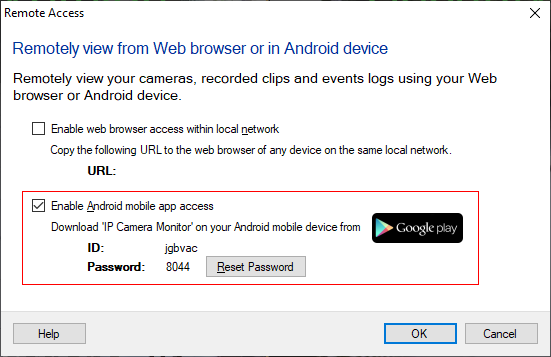
Next, open IP Camera Monitor, click Add Camera and select ‘Connect to Security Monitor Pro’. Enter the ID and password from remote access dialog in the login screen and click Connect. You will now see all the connected cameras from Security Monitor Pro on your Android mobile device.
You can remotely control actions such as monitoring, video recording, and capturing a photo. Access recorded media files and event logs directly from your device.
Hello! It looks like you're interested in this conversation, but you're not signed in.
Sign in with your Deskshare account to ask a question, reply, and get an email when someone answers. You will come back to exactly where you left off.
With your input, this post could be even better 💗
Register Login