Software to boost your productivity Deskshare
Download
Support Forum

Ask questions and find solutions to common problems.


Technical Support

Your complete reference to product technical support.


Lost License Key

Retrieve your purchase history using our automated system.

Articles

Read expert insights on how to get the most out of our software.


Video Tutorials and Manuals

Learn new features and functions with our easy to follow videos and guides.

Contact Us

Your direct line to chat with us.


About Deskshare

Discover our story and values

My Account Log In
Log In
    Deskshare Support Forum
    • Recent
    • Popular
    • Login

    View the status of all schedules

    Scheduled Pinned Locked Moved WebCam Monitor
    2 Posts 2 Posters 2.5k Views
    Loading More Posts
    • Oldest to Newest
    • Newest to Oldest
    • Most Votes
    Reply
    • Reply as topic
    Log in to reply
    This topic has been deleted. Only users with topic management privileges can see it.
    • A
      ArcaneCode
      last edited by

      I have recently started using WebCam Monitor with my USB cameras. I have several schedules to perform actions on a weekly, and daily basis. I have one question – How do I differentiate between the expired, disabled, and active schedules?

      1 Reply Last reply
      Reply Quote
      • D
        DeskShare_-_Support
        last edited by

        Webcam Monitor uses color codes to differentiate between schedules based on their run status.

        If you add new schedules, they are listed in black. The black color shows that the schedule is Active but not running currently. When you click on the Disable button on the Configure Schedule dialog, then the selected schedule will be changed to a Grey color. The color Orange indicates that the schedule has expired and will not run again. When the schedule is running, then it will be highlighted in Green.
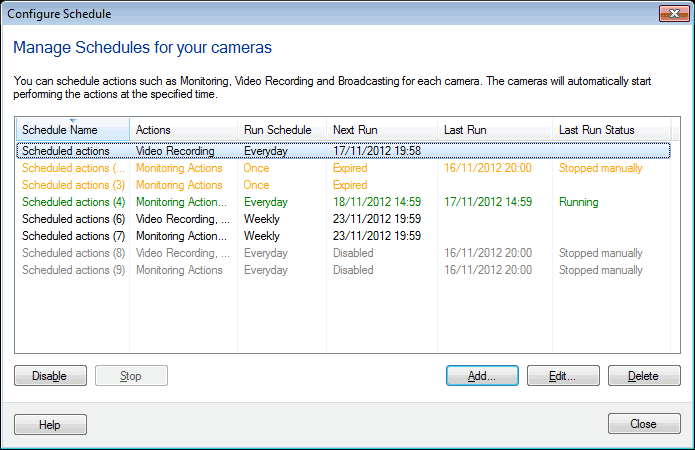
        The colors make it easy to differentiate between waiting, running, disabled, and expired schedules.

        1 Reply Last reply
        Reply Quote

        Hello! It looks like you're interested in this conversation, but you're not signed in.

        Sign in with your Deskshare account to ask a question, reply, and get an email when someone answers. You will come back to exactly where you left off.

        With your input, this post could be even better 💗

        Register Login
        • 1 / 1
        • First post
          Last post