Begin transfer after adding files to a queue
-
I want to be able to select the files to transfer, review the file list and then click to start transferring the files to FTP server when I am ready. Can Auto FTP Manager do this?
-
You can select your files and add them to Auto FTP Manager's transfer queue and then start the files transfer with a click.
The first step is to create a connection profile. Go to the File menu and select the New Connection Profile option. Choose the ‘Quick Connect’ connection profile and click on the Next button. Enter FTP address, username, etc to make the connection with the FTP server and click Next.
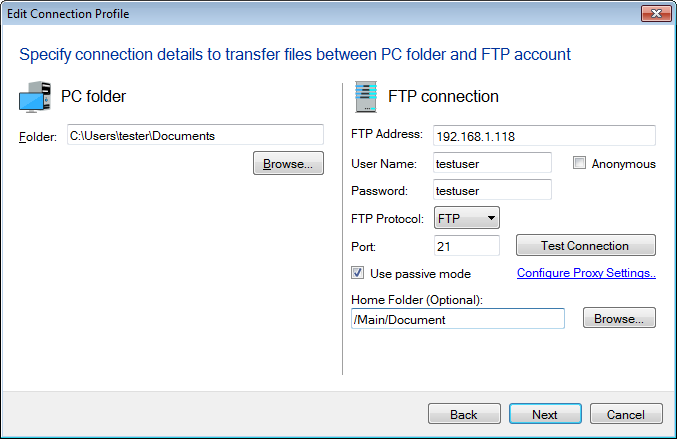
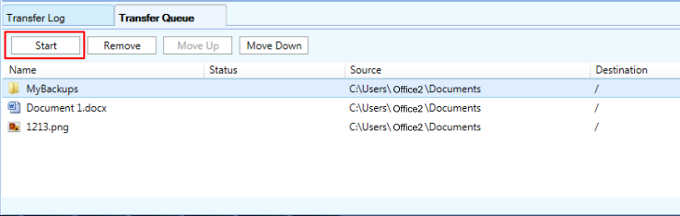
You will see the File Manager list view showing all files and folders present in the directory location. Drag the files from the File Manager and drop them in the transfer queue or right click on any file / folder and select the ‘Add to Transfer Queue’ option. The transfer Queue lists the files and folders which are ready for transfer. You can review the file list here. When ready, click on the ‘Start’ button to begin the transfer.
Hello! It looks like you're interested in this conversation, but you're not signed in.
Sign in with your Deskshare account to ask a question, reply, and get an email when someone answers. You will come back to exactly where you left off.
With your input, this post could be even better 💗
Register Login