Hiding the mask on the camera preview
-
I am using the mask function to exclude motion detection for some trees in my camera preview. The problem is after adding the mask the camera preview has a white mask on it. Can I hide the mask from the camera preview?
-
Security Monitor Pro has a feature to block unwanted motion detection on camera preview by adding a mask area. This region will be shown on the camera preview by default.
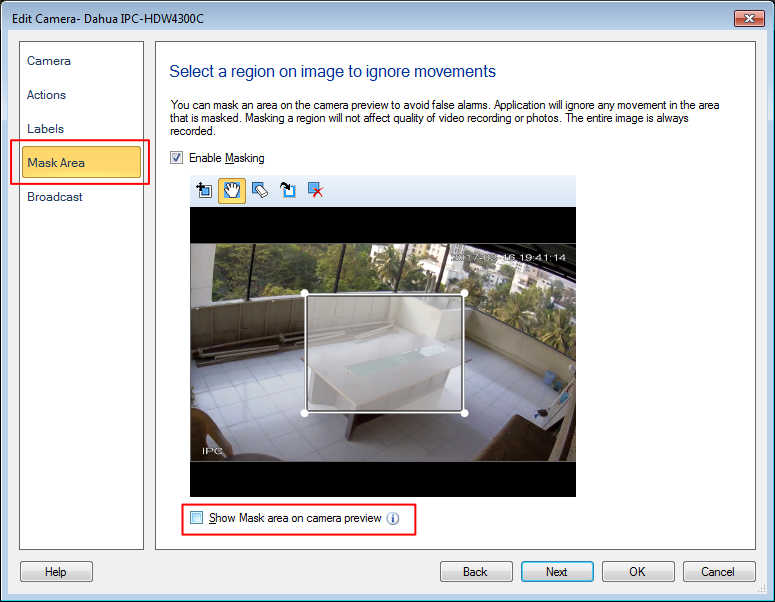
To hide the mask, select 'Manage Cameras' option from 'Camera' menu. Now select the camera and click 'Edit Camera'. On 'Mask Area' tab, uncheck the ‘Show Mask area on camera preview’ option.
Make sure that the 'Enable Masking' checkbox is selected to block false alerts. You can also add, customize, invert, erase, grab and move mask area.
Hello! It looks like you're interested in this conversation, but you're not signed in.
Sign in with your Deskshare account to ask a question, reply, and get an email when someone answers. You will come back to exactly where you left off.
With your input, this post could be even better 💗
Register Login