Reading a text file aloud on a schedule
-
I receive a file named 'message' from a ftp server to my PC folder which gets updated and overwritten every two hours. I want Text Speaker to read this file aloud automatically on a schedule. Can this be done?
-
Yes, Text Speaker can read the file aloud at a set time. You use the Talking Reminder feature to read your file.
Follow these steps:
- Click on the 'Talking Reminders' icon on the tool bar. You will see following window:
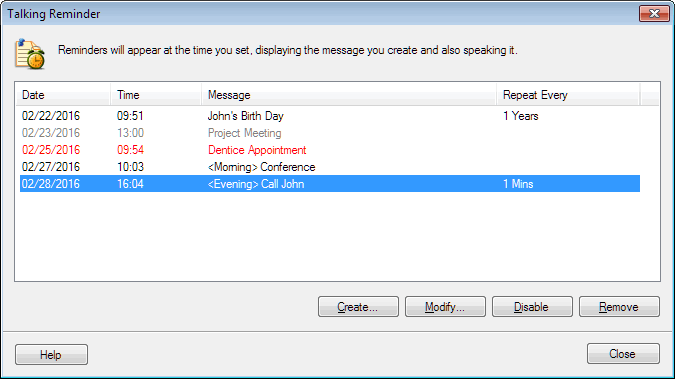
- To schedule a new reminder, click on the 'Create' button.
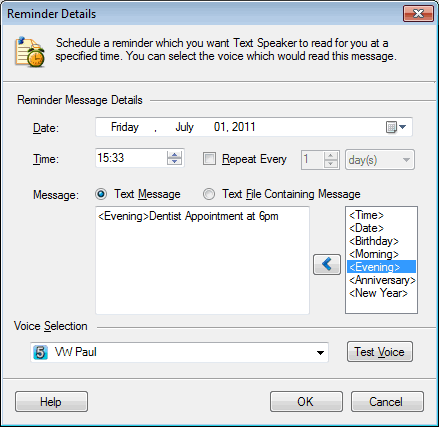
-
Select the 'Text File Containing Message' option and browse your PC folders for the text document that you want to read aloud.
-
Set the date and time for the reminder to appear. Set the time 5-10 minutes after you receive your file from the server. For example, if you receive the file at 12:00 then set the reminder time to 12:05 so that the new version of file is available at the folder location.
-
Select the option 'Repeat every' and set it for 2 hours.
When you receive a message file, it will be read aloud at a set time.
Hello! It looks like you're interested in this conversation, but you're not signed in.
Sign in with your Deskshare account to ask a question, reply, and get an email when someone answers. You will come back to exactly where you left off.
With your input, this post could be even better 💗
Register Login