Receiving email alerts only during specific times of day
-
I want to receive emails alerts on multiple email accounts during specific times of day. I have two cameras and want to receive emails from both cameras. How do I setup Security Monitor Pro for this purpose?
-
You can easily configure Security Monitor Pro to receive e-mail alerts on multiple accounts during specific times of day.
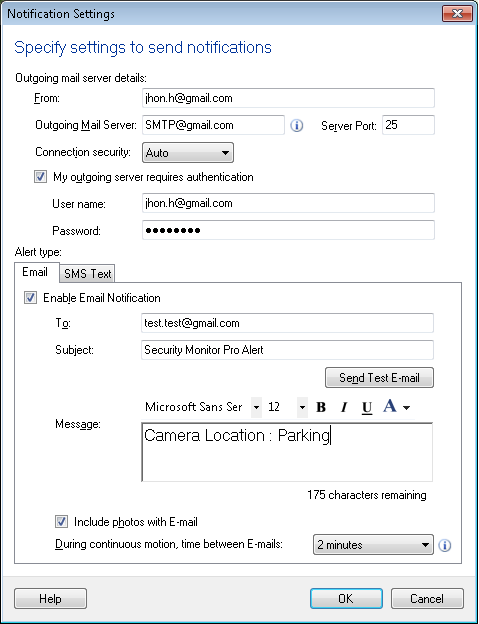
To configure these settings, click Manage camera icon from the toolbar. Select camera for which you want to receive alerts. Click Edit Camera button. On the Actions tab, select Email Notifications action and enter multiple email addresses in 'To' field using a comma to separate them.
To receive email alerts at specific times of the day, click on the Scheduler icon from toolbar. Select both cameras and Daily schedule type. Enter start date and time and number of hours to run the schedule. Set Repeat after every option to 1 day and click OK to save these settings.
The schedule will run every day and start monitoring actions. You will receive email notifications on both email addresses for a specified number of hours.
Hello! It looks like you're interested in this conversation, but you're not signed in.
Sign in with your Deskshare account to ask a question, reply, and get an email when someone answers. You will come back to exactly where you left off.
With your input, this post could be even better 💗
Register Login