How can I upload my screen recordings to a website?
-
I create tutorials and need to upload them to a website. Can you give me some more details on how to use your software to upload the videos?
-
My Screen Recorder Pro can upload your recordings to your web server or a video hosting service.
You can use WebM format since the file type is optimized for the web and can be viewed in almost every browser.
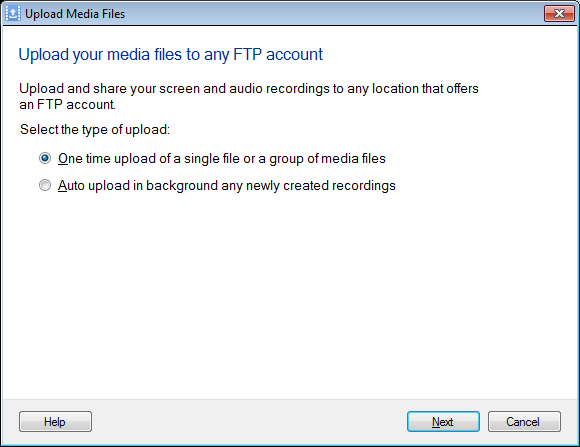
To upload your screen recordings to the website, click on the Upload icon on the toolbar. You can choose One time upload of a single file or a group of media files option for a quick transfer or select Auto upload in background any newly created recordings option for automatic upload.
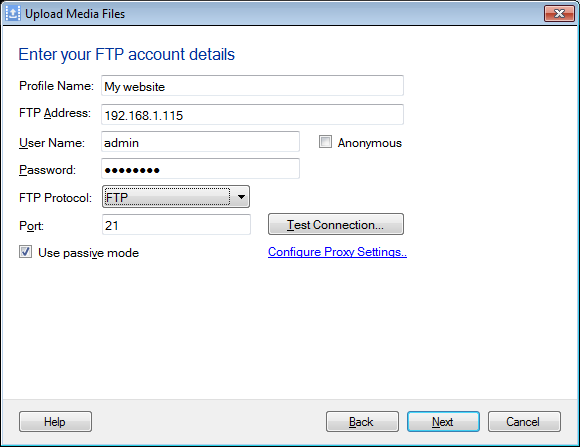
Next, create an FTP Profile. Enter the profile name, the FTP address where you want to upload your files, the login information needed to connect to the FTP server and the port number to connect to the server. Confirm the connection to the FTP server by clicking the Test Connection button.
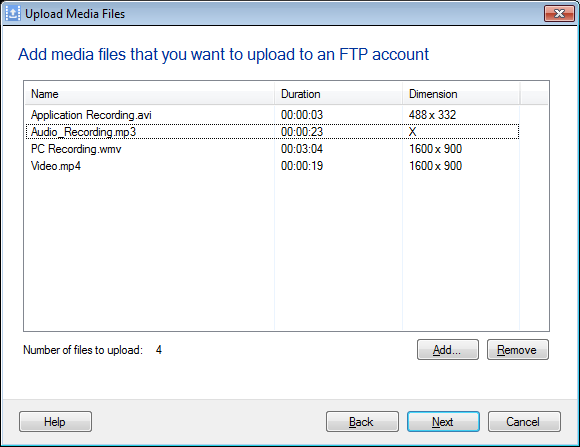
Then click Next to add files to upload on the server. Once the files are added, click Next to start uploading files. This way you can easily upload your tutorials to your website.
Hello! It looks like you're interested in this conversation, but you're not signed in.
Sign in with your Deskshare account to ask a question, reply, and get an email when someone answers. You will come back to exactly where you left off.
With your input, this post could be even better 💗
Register Login