Placing a image logo on my screen recordings
-
I am a teacher and using My Screen Recorder Pro for creating video tutorials for my students. I want to place a logo of my institute on the recordings. I don't see any option for this. Please help!!!
-
With My Screen Recorder Pro you can add watermarks or logos to your screen recordings.
Before creating the video recording,
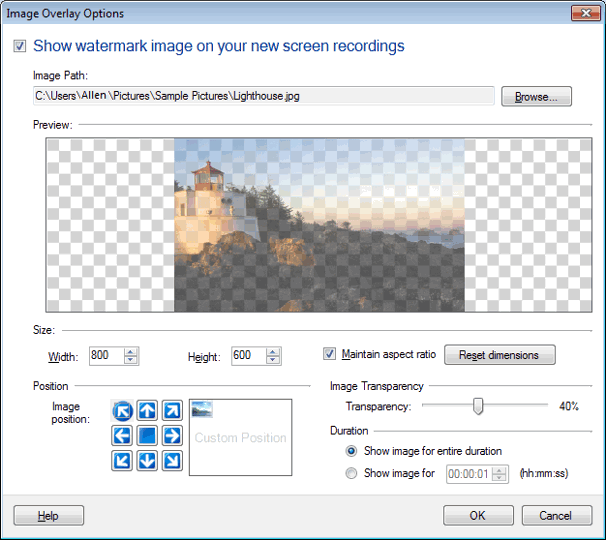
- Go to Effects menu >> Image Overlay.
-
Select an Image by clicking on Browse. You can see the image in the Preview.
-
Resize your image file by adjusting its width and height. If the Maintain Aspect Ratio checkbox is selected, the height and the width is maintained proportionately.
-
Set the Image Transparency by changing it from 1% to 90% using the slider.
-
Position your image on the recording screen by moving the image to the desired location.
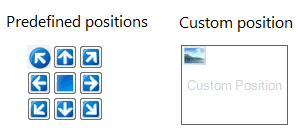
Select the duration option as needed - this allows you to have the image on screen for the complete recording duration or for a limited time. Finally, you can click on OK and create your screen recordings.
Hello! It looks like you're interested in this conversation, but you're not signed in.
Sign in with your Deskshare account to ask a question, reply, and get an email when someone answers. You will come back to exactly where you left off.
With your input, this post could be even better 💗
Register Login