Download files from FTP server automatically when I am away from my PC
-
Can I use Auto FTP Manager to download files from the FTP server when I am away from my home?
-
Use the scheduler feature to download files automatically using Auto FTP Manager.
The first step is to create an Automated profile to transfer files from your FTP server and the second step is to create a schedule for that profile.
To create an automated transfer profile, click File >> New Connection Profile. Select the connection profile type as Automated Profile. Enter the FTP details such as FTP address, port number, username and password. Navigate to the next page, look for the Action rules section and select the transfer action to download to your PC.
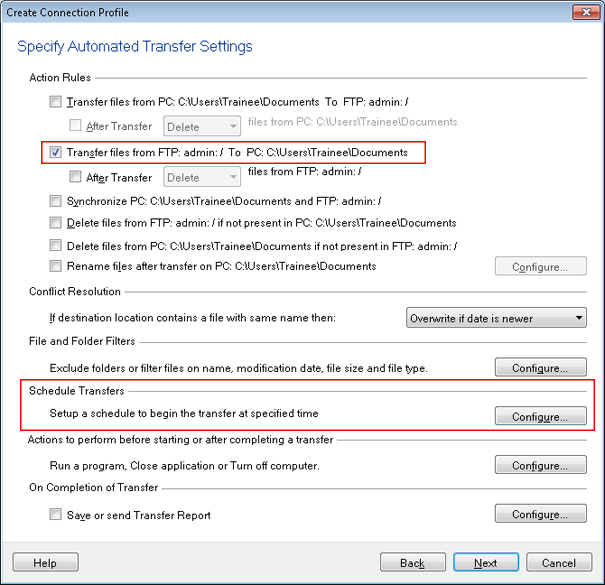
In the Schedule Transfers section, click on the Configure button. You can select a daily or weekly schedule. The **Daily **schedule will download files every day. In the Weekly schedule you can select particular days of the week for transfer. Set the start date and time for the schedule. After creating the schedule, click on the **Next **button, and enter a Profile name to finish the settings.
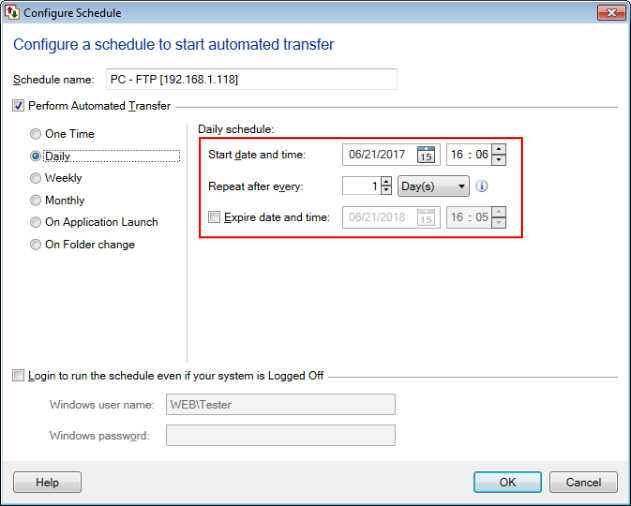
Once complete, the schedule will run at the configured time and files will be downloaded from FTP server automatically.
Hello! It looks like you're interested in this conversation, but you're not signed in.
Sign in with your Deskshare account to ask a question, reply, and get an email when someone answers. You will come back to exactly where you left off.
With your input, this post could be even better 💗
Register Login