Add or remove mobile screen preview window during recording
-
I use Screen Cast with My Screen Recorder to create a presentation of a mobile application. I would like to show a Word file at a few points in the demo. I have to keep changing the position of mobile screen to show the document. Is there a more effective way to go between the Mobile device screen and the Word document?
-
You can easily show and hide the mobile screen on your PC while recording is in progress. You can do this using the keyboard shortcuts in My Screen Recorder.
First, open My Screen Recorder and go to Tools >> Settings >> Hotkeys. You will see the Mobile screen recording key on the Hotkeys tab. The default keyboard shortcut to record your mobile screen is the Alt+F11 function key. You can change this keyboard shortcut if necessary.
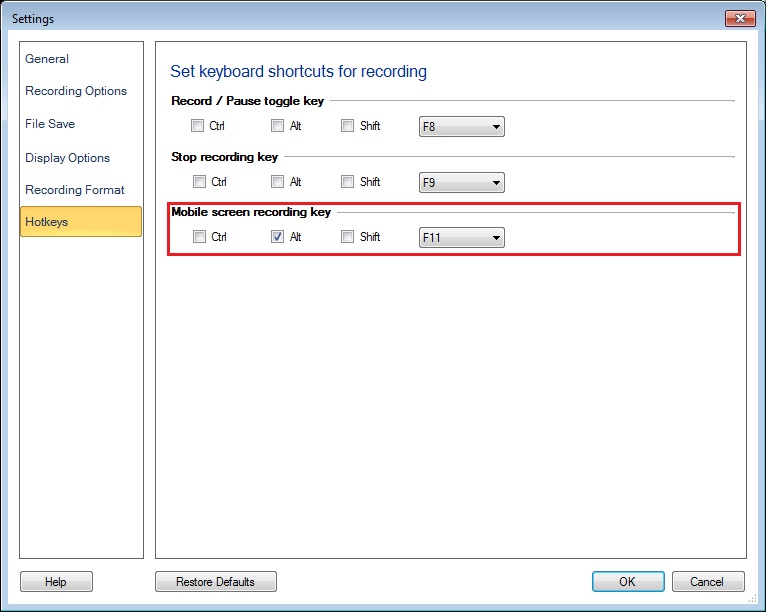
Once you have selected the hotkey, start recording. Whenever you have to show the document in the demo, press Alt+F11 to hide the mobile screen preview window. Press the hotkey again when you want the mobile screen back in the recording.
This way you can effectively complete your presentation by adding or removing the mobile device screen using hotkeys.
Hello! It looks like you're interested in this conversation, but you're not signed in.
Sign in with your Deskshare account to ask a question, reply, and get an email when someone answers. You will come back to exactly where you left off.
With your input, this post could be even better 💗
Register Login