Recording the PC screen to catch a bug in another software
-
Can I use My Screen Recorder to record the PC screen to simulate and show an issue I am having with another software? I would like to record the steps that cause a problem.
-
The Timed Recording Option in My Screen Recorder can capture the steps that cause an issue within other software. With timed recording you can record continuously, but save only the last few minutes of recording.
Whenever you get the bug simulation, stop the screen recording. The recording of the last few minutes will be saved and you will get the sequence of steps that lead to an error.
To perform timed recording, click on the Record icon from the tool bar. Select the Timed Recording Options checkbox and click on the Configure button. Choose Save the last x minutes of recording option. Enter the number of minutes and click the Ok button. Start the screen recording by clicking on the Ok button on the Recording Options dialog.
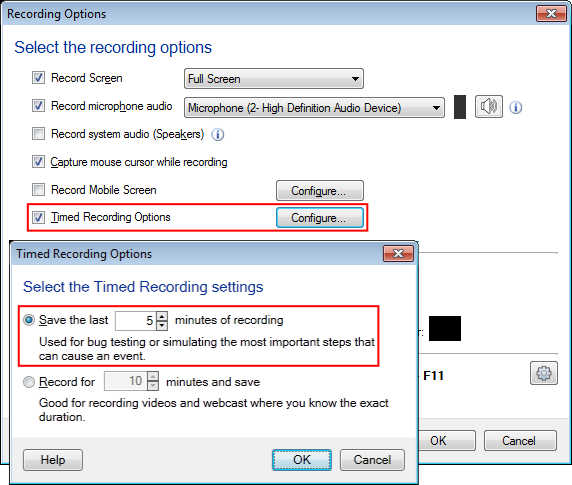
If you have selected 5 minutes and perform the recording for 15 minutes, then only the last five minutes of the recording will be saved.
Hello! It looks like you're interested in this conversation, but you're not signed in.
Sign in with your Deskshare account to ask a question, reply, and get an email when someone answers. You will come back to exactly where you left off.
With your input, this post could be even better 💗
Register Login