Saving scheduled screen recordings to a network location
-
I am using My Screen Recorder Pro to create screen recordings on a schedule. I want the screen recordings to be stored on network folder instead of my local PC folder. How can I do this?
-
In My Screen Recorder Pro, you can use a folder shortcut to select a network location for saving your screen recordings.
When the application is launched, a folder with the name "My Recordings" is created in your "My Documents" folder. When you create a screen recording, by default it is saved in the "My Recordings" folder.
You can create a folder shortcut to a network folder. To create a new folder shortcut, click File >> Folder Shortcut >> Add.
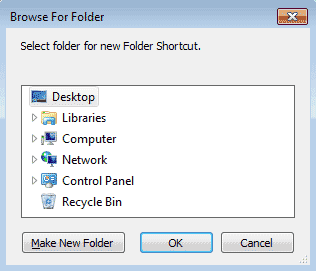
Select the network folder where you want to store the screen recordings. Once you select the folder, you will see a folder shortcut created in 'Folder Shortcuts' list.
Now, when creating a schedule, select your new folder shortcut from the 'File output folder:' drop down under the Recording options section.
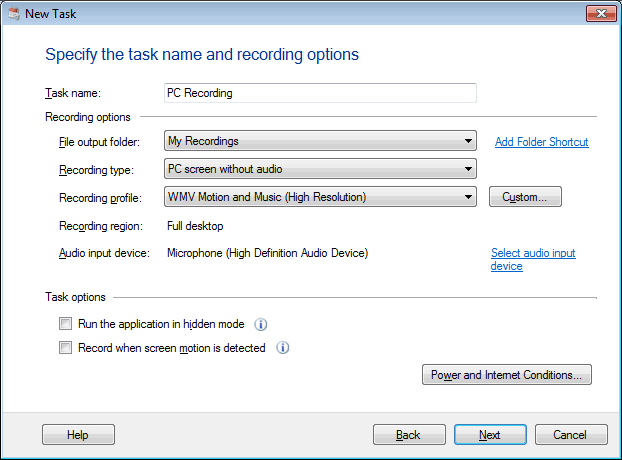
Screen recordings performed on a schedule will now be stored in your network location.
Hello! It looks like you're interested in this conversation, but you're not signed in.
Sign in with your Deskshare account to ask a question, reply, and get an email when someone answers. You will come back to exactly where you left off.
With your input, this post could be even better 💗
Register Login