How to see my camera on the web live
-
The broadcast works perfectly on my computer with windows media player .
But I want to share this Camera online on my website.
I desperately seeking the html or php for it to work .
Thanks for your help
-
Security Monitor Pro can FTP photos to your webpage and provide a live view of your cameras.
To configure FTP Settings, click FTP Upload >> Configure upload options:
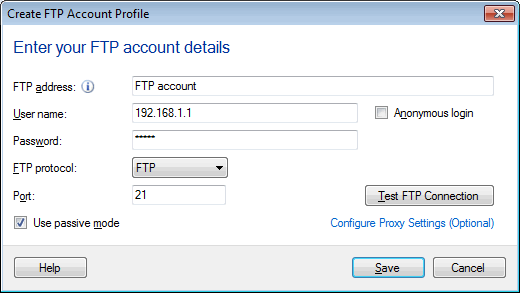
Next, configure your upload settings from Add Camera >> Actions >> Upload Media files. Rename the file on upload and overwrite so the filename always has the latest image.
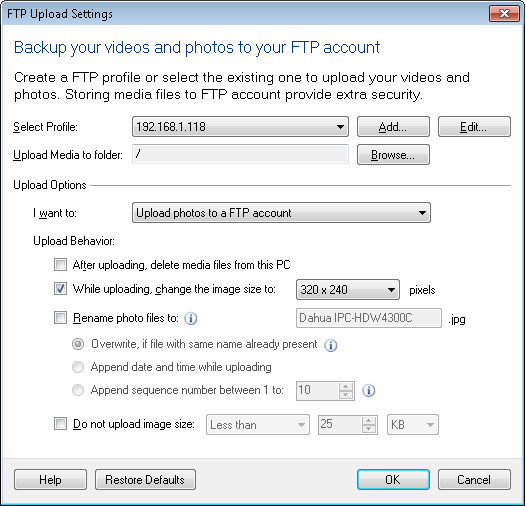
Here is a sample HTML and Javascript page that will show a updated camera image every 30 seconds:
<html>
<head>
<title>Sample Security Monitor Pro Camera Photo Page</title>
</head>
<body>
<img src="Desk1.jpg" width="320" height="240" border="1" name="refresh">
<script language="JavaScript" type="text/javascript">
<!--
var t = 10 // interval in seconds
function Start() {
document.images["refresh"].src = document.images["refresh"].src+"?"+Math.random()
setTimeout("Start()", t*1000)
}
Start();
// -->
</script>
</body>
</html>Change the value of t to the number of seconds between image updates. Try using a refresh interval that allows enough time for the image to be captured and sent by FTP to your web server. Finally, you can display multiple cameras by adding multiple images on the page.
Hello! It looks like you're interested in this conversation, but you're not signed in.
Sign in with your Deskshare account to ask a question, reply, and get an email when someone answers. You will come back to exactly where you left off.
With your input, this post could be even better 💗
Register Login