Support Forum Session 188
Bug 1
Title
Notifications page Filter still offers Tags after tags were removed forum-wide
Description
From the forum home page, open the notification icon, then choose All notifications to open the Notifications page. The Filter control defaults to All. Opening it shows options including Topics, replies, tags, categories, chats, group chats, public chats, follows, upvotes, awards, and mentions.
Tags are not part of the Deskshare support-forum model. They were removed from other surfaces by business decision. Keeping Tags in the notifications filter is inconsistent and must be removed.
Steps to Reproduce
1. Open: https://test.deskshare.com/forums/
2. On the home page, tap the notification icon.
3. In the notifications popup, choose All notifications.
4. On the Notifications page, locate the Filter control (default: All).
5. Open the Filter dropdown.
6. Observe that Tags is listed among the filter options.
Actual Behavior
• The Notifications Filter dropdown includes Tags.
• Tags are already removed or hidden everywhere else on the forum by business decision.
• Users can select a Tags notification filter for a feature that is not offered.
Expected Behavior
• Remove Tags from the Notifications page Filter options.
• The filter list must only include notification types that match features Deskshare actually offers.
• Behavior must stay consistent with the forum-wide no-tags decision already applied on other pages.
Bug 2
Title
New Topic composer shows Select category while the dropdown lists products
Description
From the forum, open Unread with no unread topics so the page shows There are no unread topics. Click New Topic to open the compose dialog. At the top left of that dialog, the control is labeled Select category.
Opening it shows the product list, not a generic category taxonomy. The label does not match the content. Deskshare's support forum treats these entries as products, and other filters already use product wording.
The composer control must say product, not category.
Steps to Reproduce
7. Open: https://test.deskshare.com/forums/
8. Click the Unread icon in the sub-navigation.
9. Ensure there are no unread topics so the page shows There are no unread topics.
10. Click New Topic.
11. In the compose popup, look at the top-left selector control.
12. Observe that it says Select category.
13. Open the control and observe that the list contains products.
Actual Behavior
• The New Topic composer selector is labeled Select category.
• The dropdown list shows Deskshare products.
• The label does not match what the user is selecting.
Expected Behavior
• The composer selector must read Select product (or Select a product), not Select category.
• Wording must stay consistent with other product selectors on the forum.
• The dropdown may continue to list the same product entries; only the incorrect category label must change.
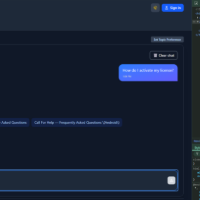
Open support forum in rOpen support Forum URL in a test mode. And that is also open on a mobile responsive mode. Then scroll to the bottom status bar and there observe that. The bottom. Status bar. UI is not properly aligned. Support Forum Session 188
Bug 1
Title
Notifications page Filter still offers Tags after tags were removed forum-wide
Description
From the forum home page, open the notification icon, then choose All notifications to open the Notifications page. The Filter control defaults to All. Opening it shows options including Topics, replies, tags, categories, chats, group chats, public chats, follows, upvotes, awards, and mentions.
Tags are not part of the Deskshare support-forum model. They were removed from other surfaces by business decision. Keeping Tags in the notifications filter is inconsistent and must be removed.
Steps to Reproduce
1. Open: https://test.deskshare.com/forums/
2. On the home page, tap the notification icon.
3. In the notifications popup, choose All notifications.
4. On the Notifications page, locate the Filter control (default: All).
5. Open the Filter dropdown.
6. Observe that Tags is listed among the filter options.
Actual Behavior
• The Notifications Filter dropdown includes Tags.
• Tags are already removed or hidden everywhere else on the forum by business decision.
• Users can select a Tags notification filter for a feature that is not offered.
Expected Behavior
• Remove Tags from the Notifications page Filter options.
• The filter list must only include notification types that match features Deskshare actually offers.
• Behavior must stay consistent with the forum-wide no-tags decision already applied on other pages.
Bug 2
Title
New Topic composer shows Select category while the dropdown lists products
Description
From the forum, open Unread with no unread topics so the page shows There are no unread topics. Click New Topic to open the compose dialog. At the top left of that dialog, the control is labeled Select category.
Opening it shows the product list, not a generic category taxonomy. The label does not match the content. Deskshare's support forum treats these entries as products, and other filters already use product wording.
The composer control must say product, not category.
Steps to Reproduce
7. Open: https://test.deskshare.com/forums/
8. Click the Unread icon in the sub-navigation.
9. Ensure there are no unread topics so the page shows There are no unread topics.
10. Click New Topic.
11. In the compose popup, look at the top-left selector control.
12. Observe that it says Select category.
13. Open the control and observe that the list contains products.
Actual Behavior
• The New Topic composer selector is labeled Select category.
• The dropdown list shows Deskshare products.
• The label does not match what the user is selecting.
Expected Behavior
• The composer selector must read Select product (or Select a product), not Select category.
• Wording must stay consistent with other product selectors on the forum.
• The dropdown may continue to list the same product entries; only the incorrect category label must change.
Open support forum in rOpen support Forum URL in a test mode. And that is also open on a mobile responsive mode. Then scroll to the bottom status bar and there observe that. The bottom. Status bar. UI is not properly aligned. Support Forum Session 188
Bug 1
Title
Notifications page Filter still offers Tags after tags were removed forum-wide
Description
From the forum home page, open the notification icon, then choose All notifications to open the Notifications page. The Filter control defaults to All. Opening it shows options including Topics, replies, tags, categories, chats, group chats, public chats, follows, upvotes, awards, and mentions.
Tags are not part of the Deskshare support-forum model. They were removed from other surfaces by business decision. Keeping Tags in the notifications filter is inconsistent and must be removed.
Steps to Reproduce
1. Open: https://test.deskshare.com/forums/
2. On the home page, tap the notification icon.
3. In the notifications popup, choose All notifications.
4. On the Notifications page, locate the Filter control (default: All).
5. Open the Filter dropdown.
6. Observe that Tags is listed among the filter options.
Actual Behavior
• The Notifications Filter dropdown includes Tags.
• Tags are already removed or hidden everywhere else on the forum by business decision.
• Users can select a Tags notification filter for a feature that is not offered.
Expected Behavior
• Remove Tags from the Notifications page Filter options.
• The filter list must only include notification types that match features Deskshare actually offers.
• Behavior must stay consistent with the forum-wide no-tags decision already applied on other pages.
Bug 2
Title
New Topic composer shows Select category while the dropdown lists products
Description
From the forum, open Unread with no unread topics so the page shows There are no unread topics. Click New Topic to open the compose dialog. At the top left of that dialog, the control is labeled Select category.
Opening it shows the product list, not a generic category taxonomy. The label does not match the content. Deskshare's support forum treats these entries as products, and other filters already use product wording.
The composer control must say product, not category.
Steps to Reproduce
7. Open: https://test.deskshare.com/forums/
8. Click the Unread icon in the sub-navigation.
9. Ensure there are no unread topics so the page shows There are no unread topics.
10. Click New Topic.
11. In the compose popup, look at the top-left selector control.
12. Observe that it says Select category.
13. Open the control and observe that the list contains products.
Actual Behavior
• The New Topic composer selector is labeled Select category.
• The dropdown list shows Deskshare products.
• The label does not match what the user is selecting.
Expected Behavior
• The composer selector must read Select product (or Select a product), not Select category.
• Wording must stay consistent with other product selectors on the forum.
• The dropdown may continue to list the same product entries; only the incorrect category label must change.
Open support forum in rOpen support Forum URL in a test mode. And that is also open on a mobile responsive mode. Then scroll to the bottom status bar and there observe that. The bottom. Status bar. UI is not properly aligned. Support Forum Session 188
Bug 1
Title
Notifications page Filter still offers Tags after tags were removed forum-wide
Description
From the forum home page, open the notification icon, then choose All notifications to open the Notifications page. The Filter control defaults to All. Opening it shows options including Topics, replies, tags, categories, chats, group chats, public chats, follows, upvotes, awards, and mentions.
Tags are not part of the Deskshare support-forum model. They were removed from other surfaces by business decision. Keeping Tags in the notifications filter is inconsistent and must be removed.
Steps to Reproduce
1. Open: https://test.deskshare.com/forums/
2. On the home page, tap the notification icon.
3. In the notifications popup, choose All notifications.
4. On the Notifications page, locate the Filter control (default: All).
5. Open the Filter dropdown.
6. Observe that Tags is listed among the filter options.
Actual Behavior
• The Notifications Filter dropdown includes Tags.
• Tags are already removed or hidden everywhere else on the forum by business decision.
• Users can select a Tags notification filter for a feature that is not offered.
Expected Behavior
• Remove Tags from the Notifications page Filter options.
• The filter list must only include notification types that match features Deskshare actually offers.
• Behavior must stay consistent with the forum-wide no-tags decision already applied on other pages.
Bug 2
Title
New Topic composer shows Select category while the dropdown lists products
Description
From the forum, open Unread with no unread topics so the page shows There are no unread topics. Click New Topic to open the compose dialog. At the top left of that dialog, the control is labeled Select category.
Opening it shows the product list, not a generic category taxonomy. The label does not match the content. Deskshare's support forum treats these entries as products, and other filters already use product wording.
The composer control must say product, not category.
Steps to Reproduce
7. Open: https://test.deskshare.com/forums/
8. Click the Unread icon in the sub-navigation.
9. Ensure there are no unread topics so the page shows There are no unread topics.
10. Click New Topic.
11. In the compose popup, look at the top-left selector control.
12. Observe that it says Select category.
13. Open the control and observe that the list contains products.
Actual Behavior
• The New Topic composer selector is labeled Select category.
• The dropdown list shows Deskshare products.
• The label does not match what the user is selecting.
Expected Behavior
• The composer selector must read Select product (or Select a product), not Select category.
• Wording must stay consistent with other product selectors on the forum.
• The dropdown may continue to list the same product entries; only the incorrect category label must change.
Open support forum in rOpen support Forum URL in a test mode. And that is also open on a mobile responsive mode. Then scroll to the bottom status bar and there observe that. The bottom. Status bar. UI is not properly aligned. Support Forum Session 188
Bug 1
Title
Notifications page Filter still offers Tags after tags were removed forum-wide
Description
From the forum home page, open the notification icon, then choose All notifications to open the Notifications page. The Filter control defaults to All. Opening it shows options including Topics, replies, tags, categories, chats, group chats, public chats, follows, upvotes, awards, and mentions.
Tags are not part of the Deskshare support-forum model. They were removed from other surfaces by business decision. Keeping Tags in the notifications filter is inconsistent and must be removed.
Steps to Reproduce
1. Open: https://test.deskshare.com/forums/
2. On the home page, tap the notification icon.
3. In the notifications popup, choose All notifications.
4. On the Notifications page, locate the Filter control (default: All).
5. Open the Filter dropdown.
6. Observe that Tags is listed among the filter options.
Actual Behavior
• The Notifications Filter dropdown includes Tags.
• Tags are already removed or hidden everywhere else on the forum by business decision.
• Users can select a Tags notification filter for a feature that is not offered.
Expected Behavior
• Remove Tags from the Notifications page Filter options.
• The filter list must only include notification types that match features Deskshare actually offers.
• Behavior must stay consistent with the forum-wide no-tags decision already applied on other pages.
Bug 2
Title
New Topic composer shows Select category while the dropdown lists products
Description
From the forum, open Unread with no unread topics so the page shows There are no unread topics. Click New Topic to open the compose dialog. At the top left of that dialog, the control is labeled Select category.
Opening it shows the product list, not a generic category taxonomy. The label does not match the content. Deskshare's support forum treats these entries as products, and other filters already use product wording.
The composer control must say product, not category.
Steps to Reproduce
7. Open: https://test.deskshare.com/forums/
8. Click the Unread icon in the sub-navigation.
9. Ensure there are no unread topics so the page shows There are no unread topics.
10. Click New Topic.
11. In the compose popup, look at the top-left selector control.
12. Observe that it says Select category.
13. Open the control and observe that the list contains products.
Actual Behavior
• The New Topic composer selector is labeled Select category.
• The dropdown list shows Deskshare products.
• The label does not match what the user is selecting.
Expected Behavior
• The composer selector must read Select product (or Select a product), not Select category.
• Wording must stay consistent with other product selectors on the forum.
• The dropdown may continue to list the same product entries; only the incorrect category label must change.
Open support forum in rOpen support Forum URL in a test mode. And that is also open on a mobile responsive mode. Then scroll to the bottom status bar and there observe that. The bottom. Status bar. UI is not properly aligned. Support Forum Session 188
Bug 1
Title
Notifications page Filter still offers Tags after tags were removed forum-wide
Description
From the forum home page, open the notification icon, then choose All notifications to open the Notifications page. The Filter control defaults to All. Opening it shows options including Topics, replies, tags, categories, chats, group chats, public chats, follows, upvotes, awards, and mentions.
Tags are not part of the Deskshare support-forum model. They were removed from other surfaces by business decision. Keeping Tags in the notifications filter is inconsistent and must be removed.
Steps to Reproduce
1. Open: https://test.deskshare.com/forums/
2. On the home page, tap the notification icon.
3. In the notifications popup, choose All notifications.
4. On the Notifications page, locate the Filter control (default: All).
5. Open the Filter dropdown.
6. Observe that Tags is listed among the filter options.
Actual Behavior
• The Notifications Filter dropdown includes Tags.
• Tags are already removed or hidden everywhere else on the forum by business decision.
• Users can select a Tags notification filter for a feature that is not offered.
Expected Behavior
• Remove Tags from the Notifications page Filter options.
• The filter list must only include notification types that match features Deskshare actually offers.
• Behavior must stay consistent with the forum-wide no-tags decision already applied on other pages.
Bug 2
Title
New Topic composer shows Select category while the dropdown lists products
Description
From the forum, open Unread with no unread topics so the page shows There are no unread topics. Click New Topic to open the compose dialog. At the top left of that dialog, the control is labeled Select category.
Opening it shows the product list, not a generic category taxonomy. The label does not match the content. Deskshare's support forum treats these entries as products, and other filters already use product wording.
The composer control must say product, not category.
Steps to Reproduce
7. Open: https://test.deskshare.com/forums/
8. Click the Unread icon in the sub-navigation.
9. Ensure there are no unread topics so the page shows There are no unread topics.
10. Click New Topic.
11. In the compose popup, look at the top-left selector control.
12. Observe that it says Select category.
13. Open the control and observe that the list contains products.
Actual Behavior
• The New Topic composer selector is labeled Select category.
• The dropdown list shows Deskshare products.
• The label does not match what the user is selecting.
Expected Behavior
• The composer selector must read Select product (or Select a product), not Select category.
• Wording must stay consistent with other product selectors on the forum.
• The dropdown may continue to list the same product entries; only the incorrect category label must change.
Open support forum in rOpen support Forum URL in a test mode. And that is also open on a mobile responsive mode. Then scroll to the bottom status bar and there observe that. The bottom. Status bar. UI is not properly aligned. Support Forum Session 188
Bug 1
Title
Notifications page Filter still offers Tags after tags were removed forum-wide
Description
From the forum home page, open the notification icon, then choose All notifications to open the Notifications page. The Filter control defaults to All. Opening it shows options including Topics, replies, tags, categories, chats, group chats, public chats, follows, upvotes, awards, and mentions.
Tags are not part of the Deskshare support-forum model. They were removed from other surfaces by business decision. Keeping Tags in the notifications filter is inconsistent and must be removed.
Steps to Reproduce
1. Open: https://test.deskshare.com/forums/
2. On the home page, tap the notification icon.
3. In the notifications popup, choose All notifications.
4. On the Notifications page, locate the Filter control (default: All).
5. Open the Filter dropdown.
6. Observe that Tags is listed among the filter options.
Actual Behavior
• The Notifications Filter dropdown includes Tags.
• Tags are already removed or hidden everywhere else on the forum by business decision.
• Users can select a Tags notification filter for a feature that is not offered.
Expected Behavior
• Remove Tags from the Notifications page Filter options.
• The filter list must only include notification types that match features Deskshare actually offers.
• Behavior must stay consistent with the forum-wide no-tags decision already applied on other pages.
Bug 2
Title
New Topic composer shows Select category while the dropdown lists products
Description
From the forum, open Unread with no unread topics so the page shows There are no unread topics. Click New Topic to open the compose dialog. At the top left of that dialog, the control is labeled Select category.
Opening it shows the product list, not a generic category taxonomy. The label does not match the content. Deskshare's support forum treats these entries as products, and other filters already use product wording.
The composer control must say product, not category.
Steps to Reproduce
7. Open: https://test.deskshare.com/forums/
8. Click the Unread icon in the sub-navigation.
9. Ensure there are no unread topics so the page shows There are no unread topics.
10. Click New Topic.
11. In the compose popup, look at the top-left selector control.
12. Observe that it says Select category.
13. Open the control and observe that the list contains products.
Actual Behavior
• The New Topic composer selector is labeled Select category.
• The dropdown list shows Deskshare products.
• The label does not match what the user is selecting.
Expected Behavior
• The composer selector must read Select product (or Select a product), not Select category.
• Wording must stay consistent with other product selectors on the forum.
• The dropdown may continue to list the same product entries; only the incorrect category label must change.
Open support forum in rOpen support Forum URL in a test mode. And that is also open on a mobile responsive mode. Then scroll to the bottom status bar and there observe that. The bottom. Status bar. UI is not properly aligned. Support Forum Session 188
Bug 1
Title
Notifications page Filter still offers Tags after tags were removed forum-wide
Description
From the forum home page, open the notification icon, then choose All notifications to open the Notifications page. The Filter control defaults to All. Opening it shows options including Topics, replies, tags, categories, chats, group chats, public chats, follows, upvotes, awards, and mentions.
Tags are not part of the Deskshare support-forum model. They were removed from other surfaces by business decision. Keeping Tags in the notifications filter is inconsistent and must be removed.
Steps to Reproduce
1. Open: https://test.deskshare.com/forums/
2. On the home page, tap the notification icon.
3. In the notifications popup, choose All notifications.
4. On the Notifications page, locate the Filter control (default: All).
5. Open the Filter dropdown.
6. Observe that Tags is listed among the filter options.
Actual Behavior
• The Notifications Filter dropdown includes Tags.
• Tags are already removed or hidden everywhere else on the forum by business decision.
• Users can select a Tags notification filter for a feature that is not offered.
Expected Behavior
• Remove Tags from the Notifications page Filter options.
• The filter list must only include notification types that match features Deskshare actually offers.
• Behavior must stay consistent with the forum-wide no-tags decision already applied on other pages.
Bug 2
Title
New Topic composer shows Select category while the dropdown lists products
Description
From the forum, open Unread with no unread topics so the page shows There are no unread topics. Click New Topic to open the compose dialog. At the top left of that dialog, the control is labeled Select category.
Opening it shows the product list, not a generic category taxonomy. The label does not match the content. Deskshare's support forum treats these entries as products, and other filters already use product wording.
The composer control must say product, not category.
Steps to Reproduce
7. Open: https://test.deskshare.com/forums/
8. Click the Unread icon in the sub-navigation.
9. Ensure there are no unread topics so the page shows There are no unread topics.
10. Click New Topic.
11. In the compose popup, look at the top-left selector control.
12. Observe that it says Select category.
13. Open the control and observe that the list contains products.
Actual Behavior
• The New Topic composer selector is labeled Select category.
• The dropdown list shows Deskshare products.
• The label does not match what the user is selecting.
Expected Behavior
• The composer selector must read Select product (or Select a product), not Select category.
• Wording must stay consistent with other product selectors on the forum.
• The dropdown may continue to list the same product entries; only the incorrect category label must change.
Open support forum in rOpen support Forum URL in a test mode. And that is also open on a mobile responsive mode. Then scroll to the bottom status bar and there observe that. The bottom. Status bar. UI is not properly aligned. Support Forum Session 188
Bug 1
Title
Notifications page Filter still offers Tags after tags were removed forum-wide
Description
From the forum home page, open the notification icon, then choose All notifications to open the Notifications page. The Filter control defaults to All. Opening it shows options including Topics, replies, tags, categories, chats, group chats, public chats, follows, upvotes, awards, and mentions.
Tags are not part of the Deskshare support-forum model. They were removed from other surfaces by business decision. Keeping Tags in the notifications filter is inconsistent and must be removed.
Steps to Reproduce
1. Open: https://test.deskshare.com/forums/
2. On the home page, tap the notification icon.
3. In the notifications popup, choose All notifications.
4. On the Notifications page, locate the Filter control (default: All).
5. Open the Filter dropdown.
6. Observe that Tags is listed among the filter options.
Actual Behavior
• The Notifications Filter dropdown includes Tags.
• Tags are already removed or hidden everywhere else on the forum by business decision.
• Users can select a Tags notification filter for a feature that is not offered.
Expected Behavior
• Remove Tags from the Notifications page Filter options.
• The filter list must only include notification types that match features Deskshare actually offers.
• Behavior must stay consistent with the forum-wide no-tags decision already applied on other pages.
Bug 2
Title
New Topic composer shows Select category while the dropdown lists products
Description
From the forum, open Unread with no unread topics so the page shows There are no unread topics. Click New Topic to open the compose dialog. At the top left of that dialog, the control is labeled Select category.
Opening it shows the product list, not a generic category taxonomy. The label does not match the content. Deskshare's support forum treats these entries as products, and other filters already use product wording.
The composer control must say product, not category.
Steps to Reproduce
7. Open: https://test.deskshare.com/forums/
8. Click the Unread icon in the sub-navigation.
9. Ensure there are no unread topics so the page shows There are no unread topics.
10. Click New Topic.
11. In the compose popup, look at the top-left selector control.
12. Observe that it says Select category.
13. Open the control and observe that the list contains products.
Actual Behavior
• The New Topic composer selector is labeled Select category.
• The dropdown list shows Deskshare products.
• The label does not match what the user is selecting.
Expected Behavior
• The composer selector must read Select product (or Select a product), not Select category.
• Wording must stay consistent with other product selectors on the forum.
• The dropdown may continue to list the same product entries; only the incorrect category label must change.
Open support forum in rOpen support Forum URL in a test mode. And that is also open on a mobile responsive mode. Then scroll to the bottom status bar and there observe that. The bottom. Status bar. UI is not properly aligned.